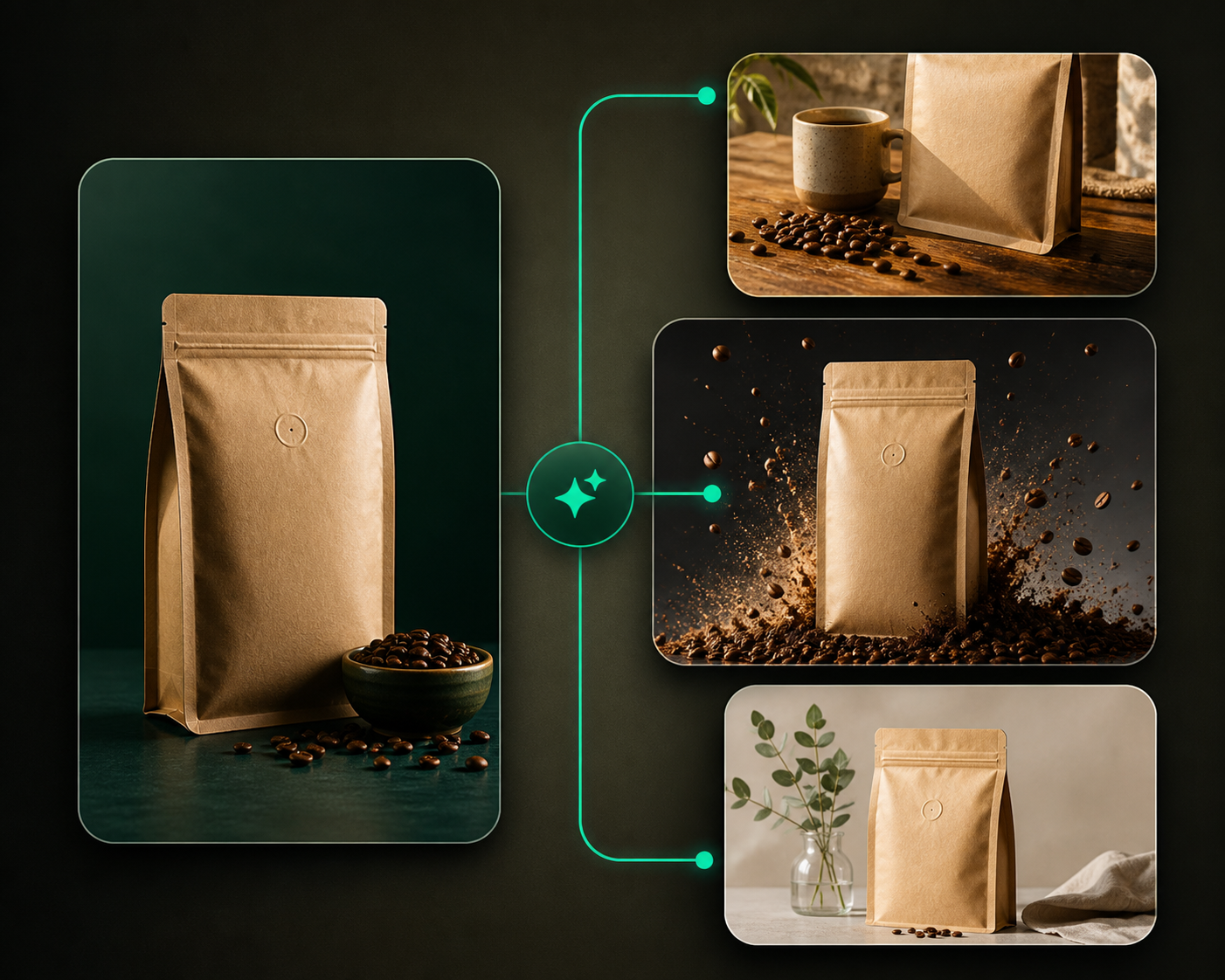
Quick Image is the shortest path from uploaded product to a small set of new creative directions.
Use this guide when
you want a fast read on whether a source product and prompt direction are working.
What Quick Image is
Quick Image creates a focused set of standalone product visuals from one source image. It is meant for fast concept testing, product hero shots, marketplace style images, simple lifestyle scenes, and early prompt exploration.
Quick Image does not try to build a whole campaign system. It helps you answer one question quickly: does this product, prompt, and quality tier create a usable visual direction?
What you get
You get one or more generated images based on the selected product, prompt, preset direction, placement, and quality tier. Results appear in the active batch, Studio, and My Creatives.
Before you start
Pick the product you want to test and write one clear scene direction. Keep the first run small so you can learn from the result before spending more credits. If you are not sure Quick Image is the right path, compare the options in Choose the right Studio workflow.
Create a quick set
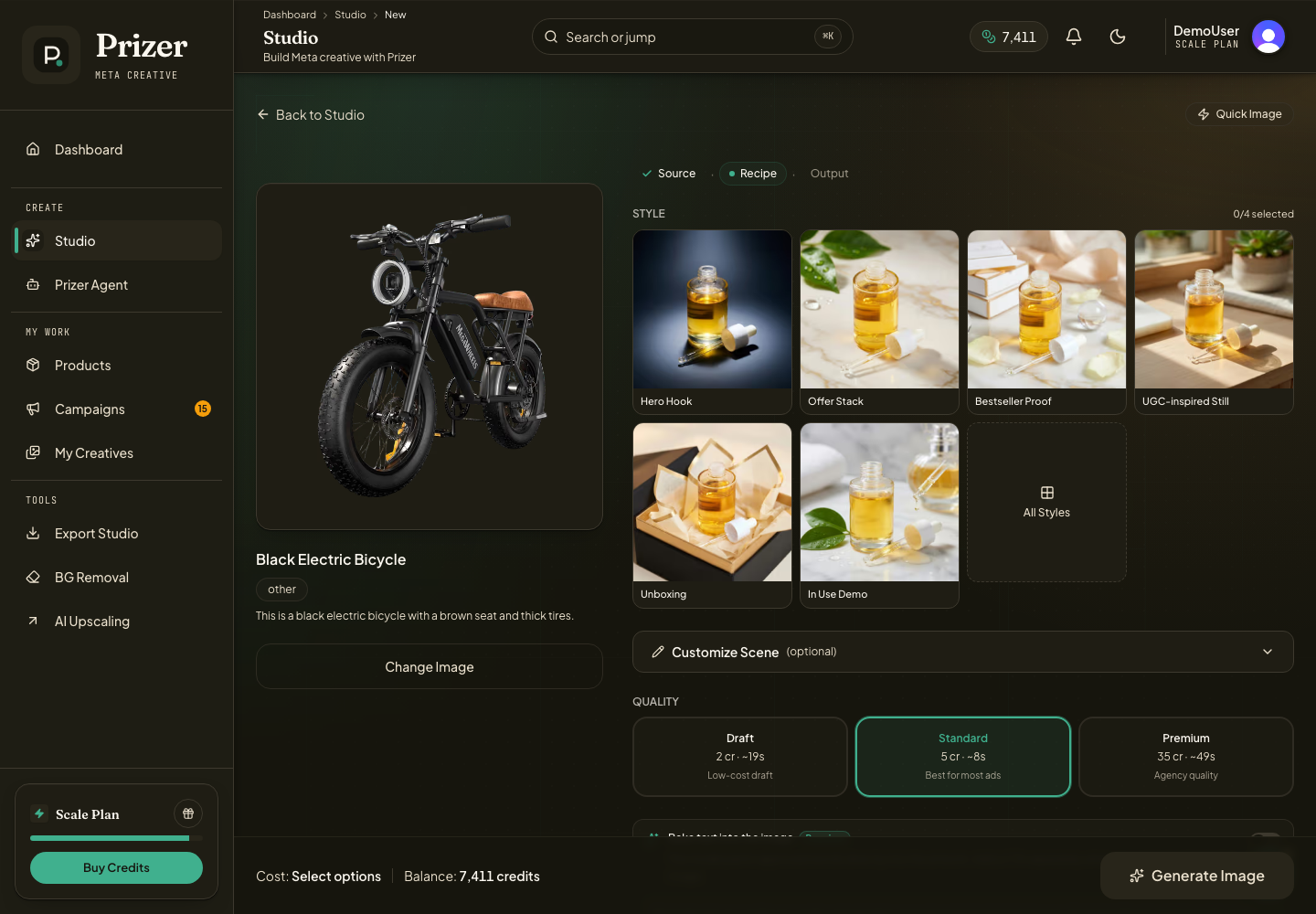
Open Quick Image from Studio.
Select the product image you want to use. If the picker opens first, choose from Library or upload a new product.
Describe the scene or style you want. Be specific about background, lighting, surface, angle, and intended use.
Choose a quality tier. Standard is a strong default when you want useful marketing candidates.
Confirm the settings and wait for the results to finish.
When to choose Quick Image
Choose Quick Image when you are testing a new product source, exploring one prompt, creating a single product hero direction, or checking whether a scene works before building a larger ad set.
Choose Ad Variants instead when you want multiple buyer angles. Choose Full Campaign when you need placements, templates, copy, and a broader campaign review flow.
Prompt tips
Name the channel or use case when it matters, such as marketplace main image, lifestyle hero, seasonal campaign, or Meta ad. Add product preservation language when color, shape, label, or material accuracy matters.
If you only need to explore composition, use a lower tier first. If the product changes shape or loses details, retry with clearer preservation instructions or a higher tier. See Improving generation quality before rerunning the same setup many times.
How many images should I make?
Start small. Generate a few candidates, learn which prompt direction works, then expand the best direction into Ad Variants or a campaign.