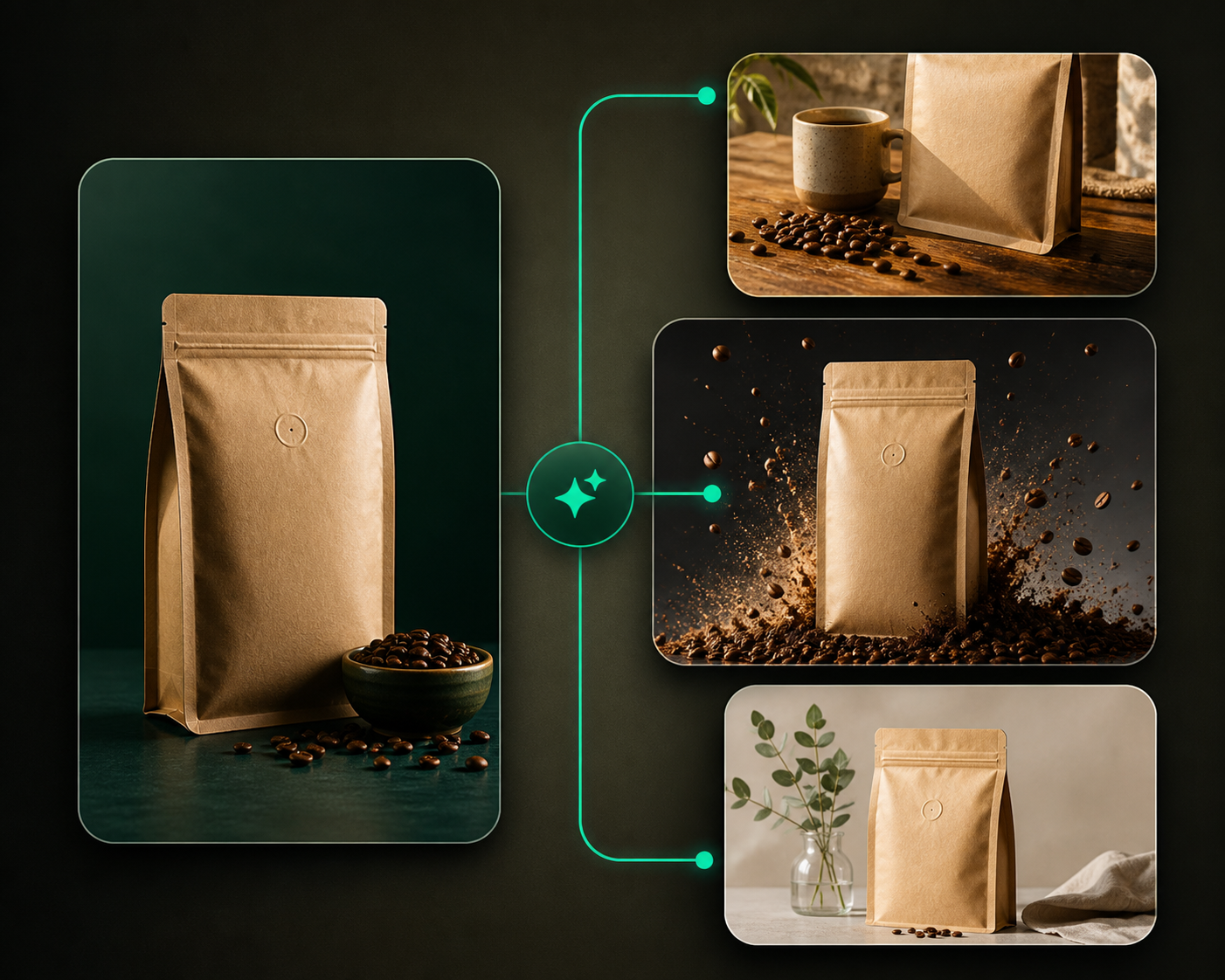
The Products library is where uploaded source images live. Use it when you need to find a product, upload another image, or review what is available for future Studio projects.
Use this guide when
you are looking for source images, not finished generated assets.
Before you start
Know whether you are searching for an original upload, an imported URL image, or a background removed version. Finished creative belongs in My Creatives.
Find and reuse product images
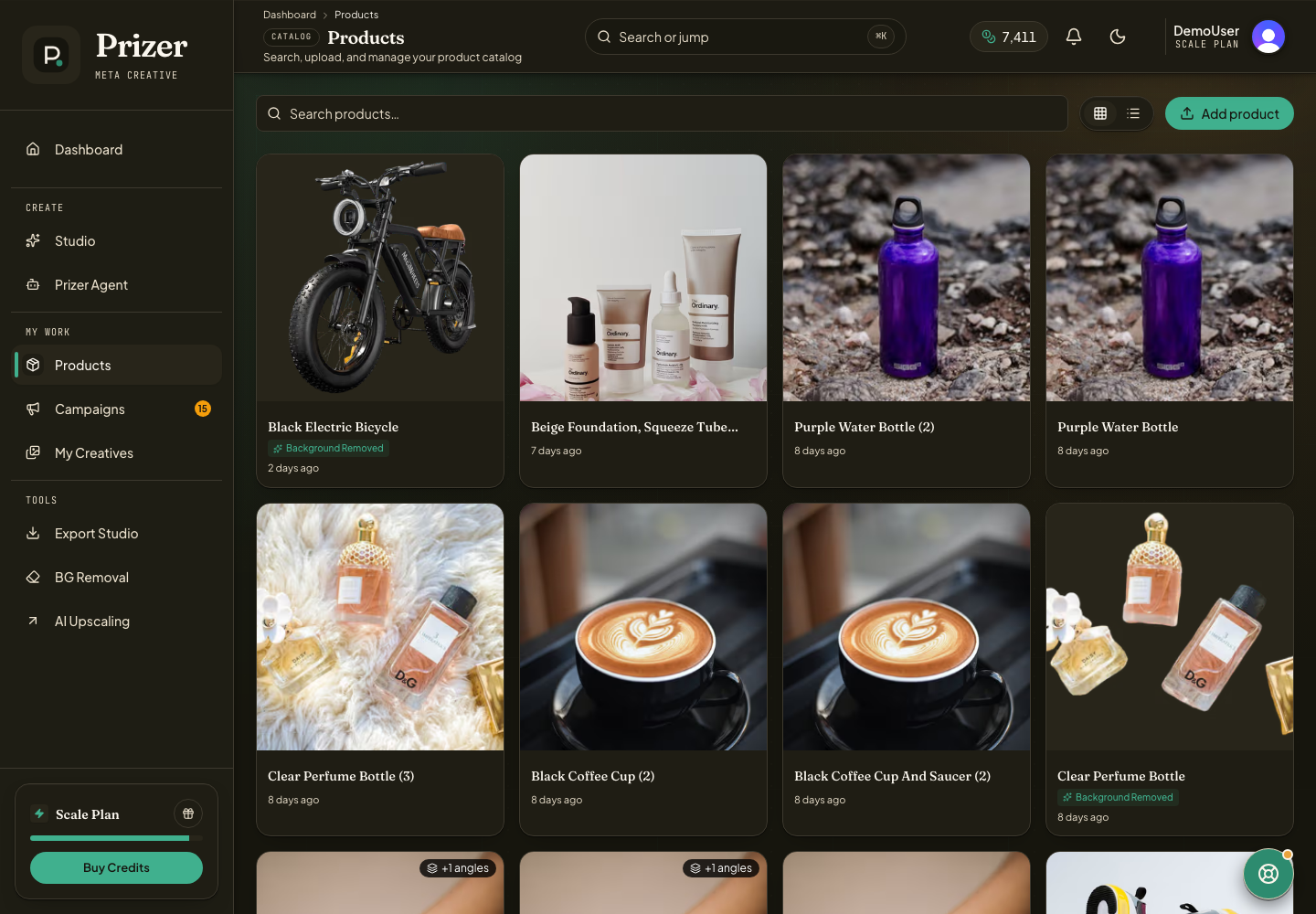
Open Products from the dashboard navigation.
Use search when you know the product name or filename.
Switch between grid and list view depending on how much detail you need.
Open a product to review details or start a related workflow.
Upload another product from Upload Product when you need a cleaner source or a new angle. The upload guide and multi-view guide can help you decide what to add.
Product images are source references. Finished generated assets belong in My Creatives or Campaigns.
Why do I see more than one image for the same product?
You may have uploaded multiple views, imported a URL version, or generated a background removed version. Keep the clearest source images in Products for future work.