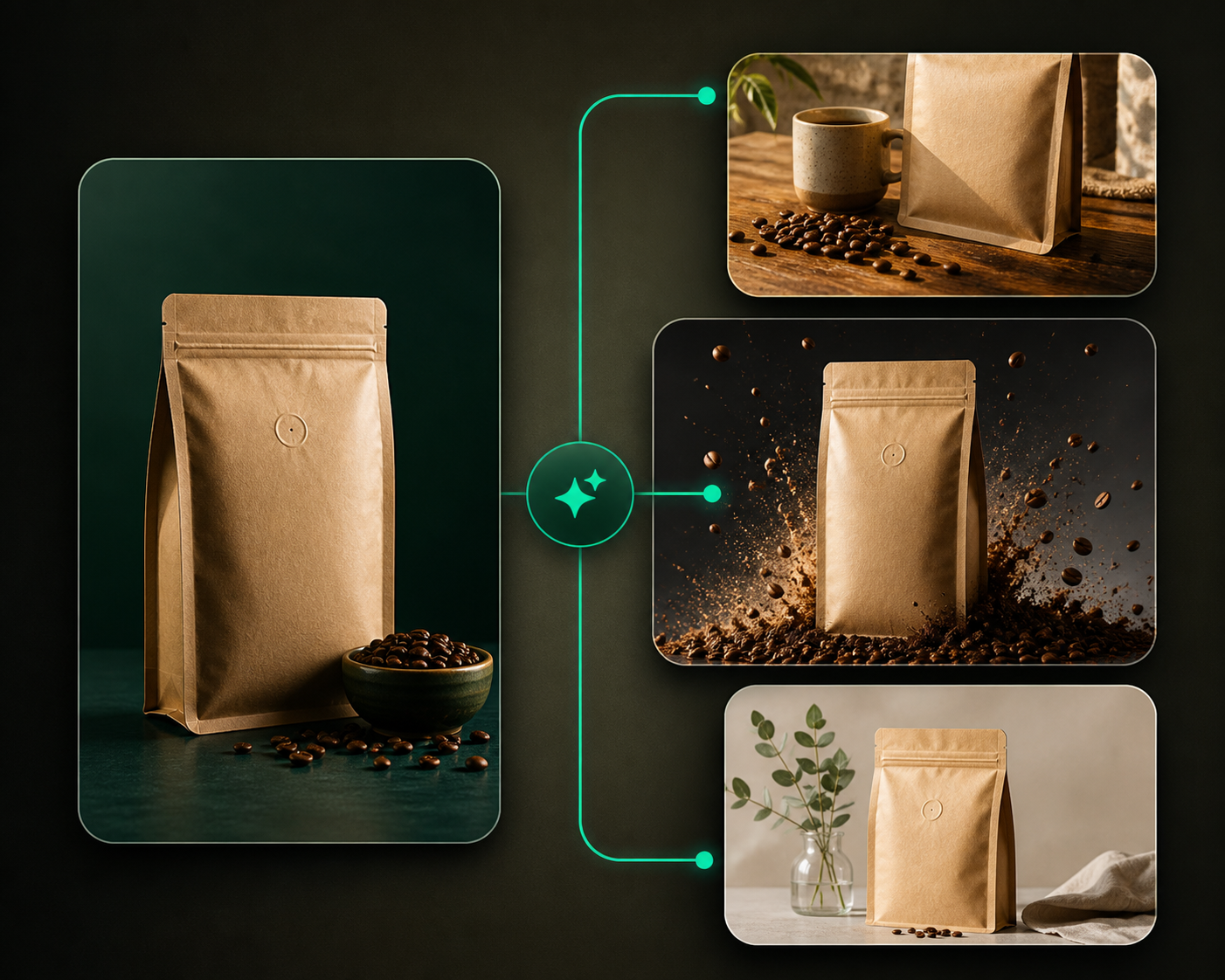
Video creation turns an existing completed image into a short product motion asset.
Use this guide when
you already like a still image and want a motion version for feed, Stories, Reels, carousel cards, or review.
Before you start
Start from a completed image with a strong composition. If the product, crop, or scene is wrong, improve the still first with Improving generation quality before spending video credits.
Create a video from My Creatives
Open My Creatives and stay on the Creatives tab.
Select one completed image, or select multiple images when you want to apply the same motion settings to a batch.
Click Create Video from the bulk action bar.
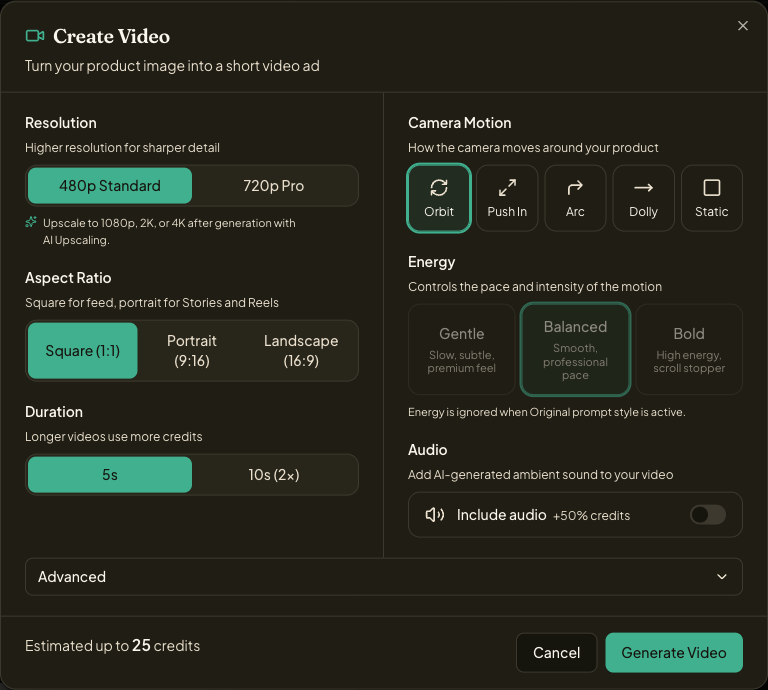
Choose resolution, aspect ratio, duration, camera motion, energy, audio, and advanced options.
Review the estimated credit cost, then click Generate Video only when the settings are right.
Review the finished clip from the Videos tab.
Create video carousel cards
Open a carousel project from Studio or a campaign-linked carousel. In the carousel workspace, use the export panel to convert the current slide, selected slides, or all completed slides into motion. Incomplete slides stay in the carousel and are excluded until their still image finishes.
Pick motion settings
Use Orbit, Push In, Arc, Dolly, or Static based on the placement. Square works well for feed. Portrait is usually better for Stories and Reels. Use shorter clips for quick social motion tests and upscale later when the clip is worth publishing.
Video generation spends credits and can take longer than image generation. Do not click Generate Video while you are only exploring settings.
Can I upscale a video later?
Yes. After a video finishes, use Upscale images and videos or the video upscale action when you need 1080p, 2K, or 4K output.