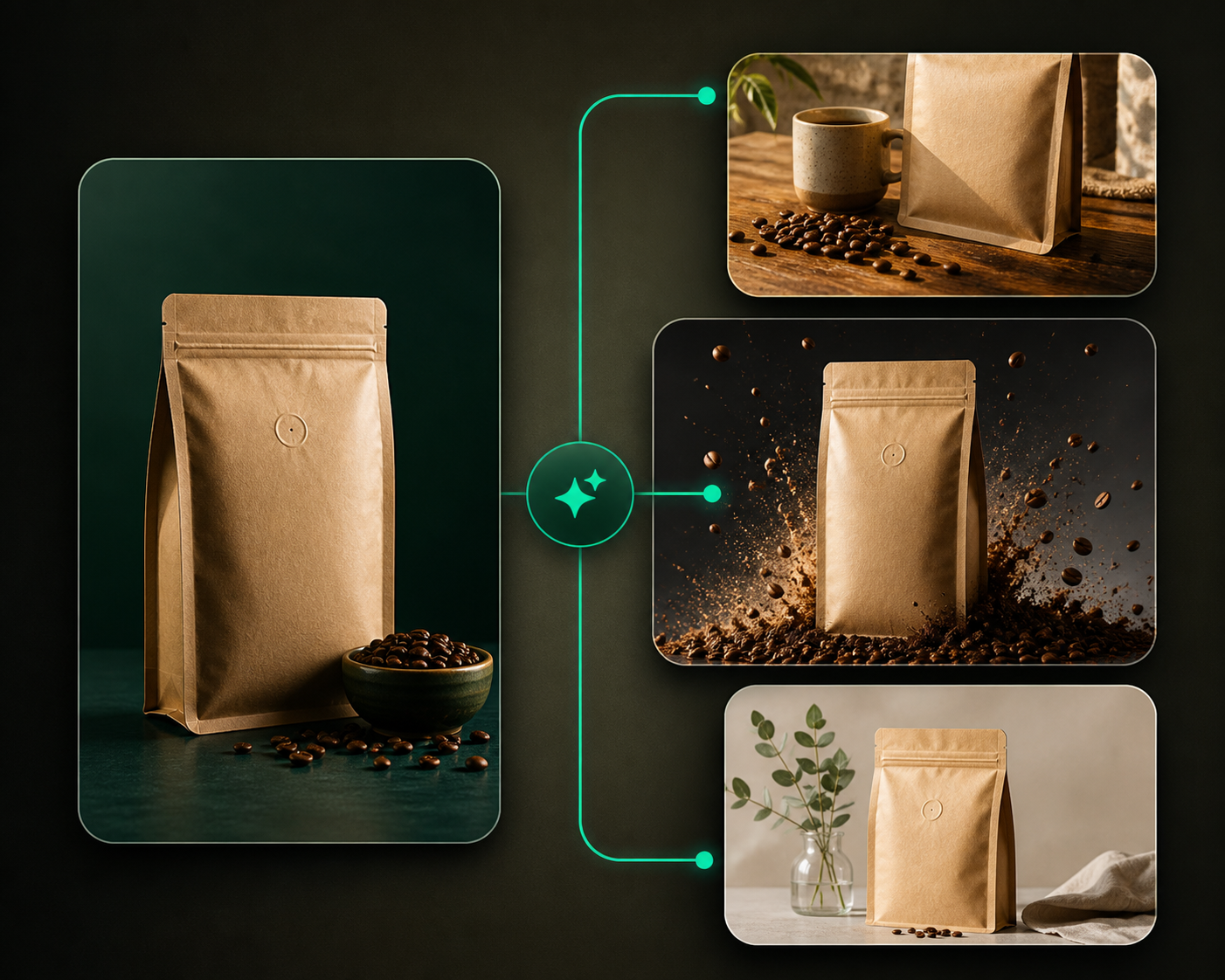
Upscaling helps when an image or video is visually strong but needs a larger final output.
Use this guide when
the creative direction is already good and the remaining problem is resolution.
Before you start
Upscale only assets you expect to publish, present, or reuse. If the composition or product fidelity is wrong, use Improving generation quality before upscaling.
Upscale an image
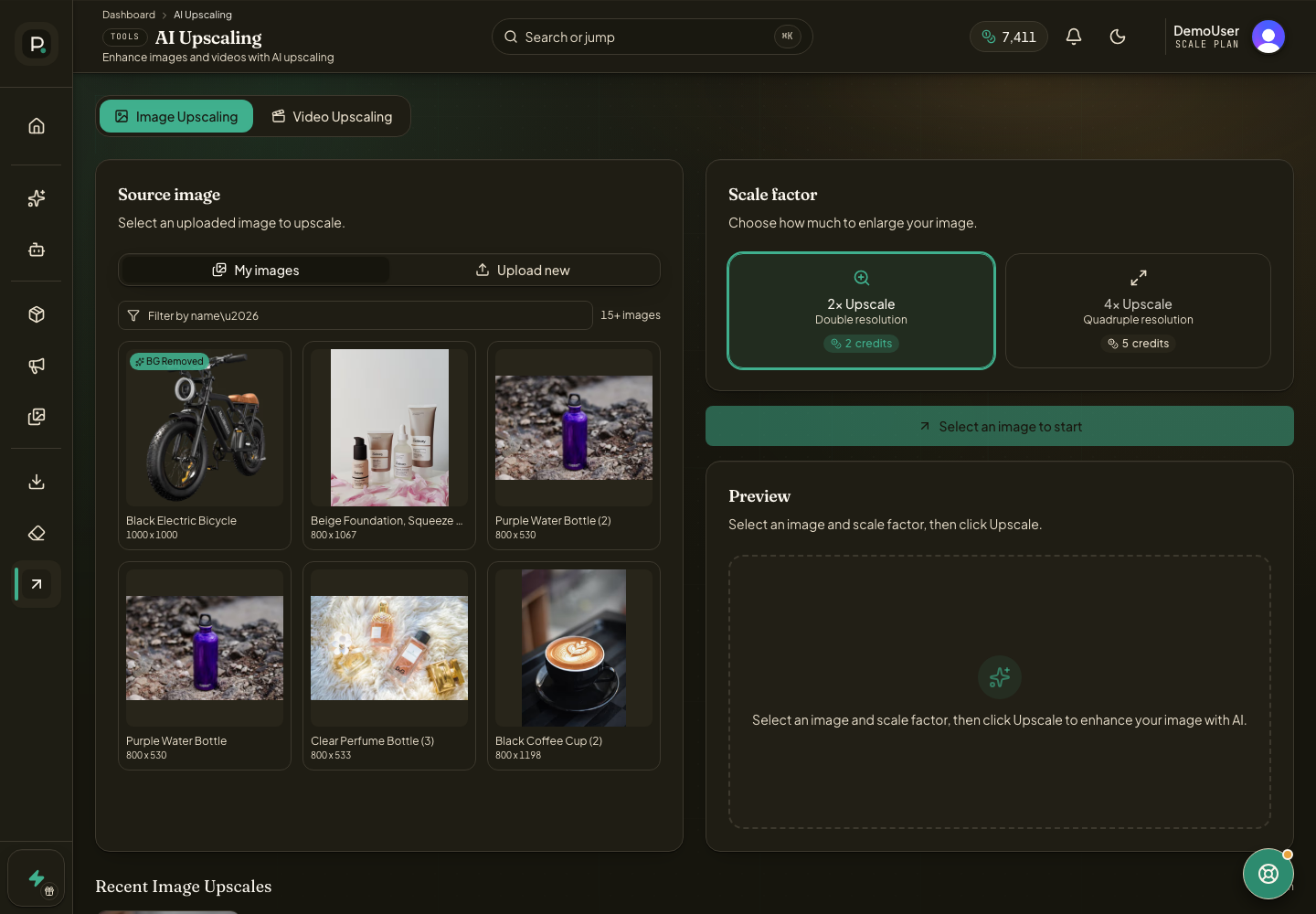
Open AI Upscaling from the dashboard navigation.
Choose Image mode.
Select an uploaded image from Products or a generated image from My Creatives.
Choose the scale, review the credit cost, and start the upscale.
Download the finished result when processing completes.
Upscale a video
Switch to Video mode.
Select a completed video.
Choose the target resolution, review the credit estimate, and start the upscale.
Watch the status panel until the new video is ready.
If Prizer can reuse an existing upscale for the same source and settings, the app may reuse it instead of charging again. For credit planning, see Credits and plans.
Should I upscale every asset?
No. Upscale only the assets you plan to publish, present, or reuse at larger sizes.