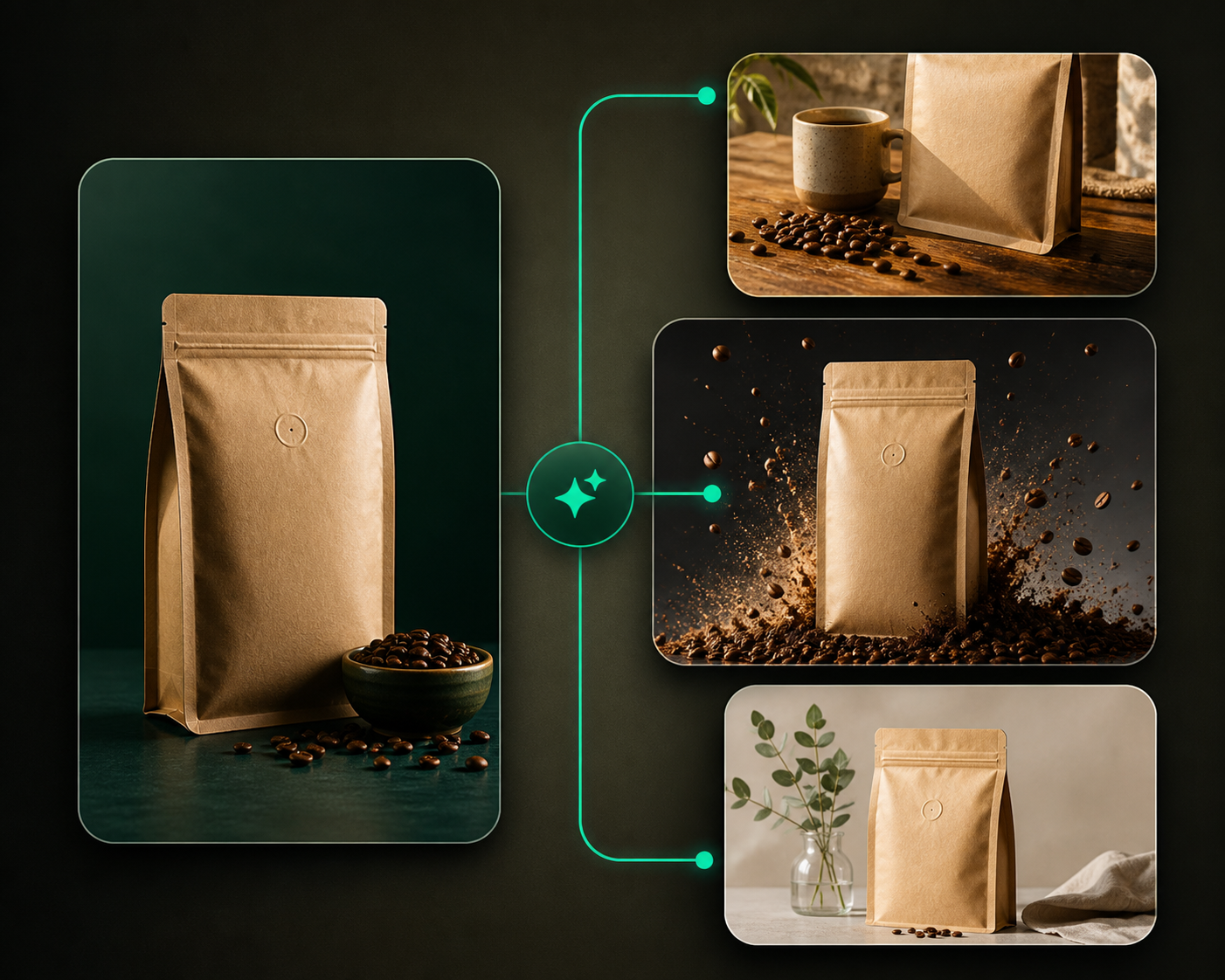
The Videos tab in My Creatives is the main library for motion assets created from product images and carousel slides.
Use this guide when
a video has finished, failed, needs feedback, or needs to be downloaded or upscaled.
Before you start
If the video is still processing, wait for the status card to update. If it failed, read the failure message before retrying. Some failures return credits automatically, but support still needs the video or source link to investigate unusual cases.
Review the Videos tab
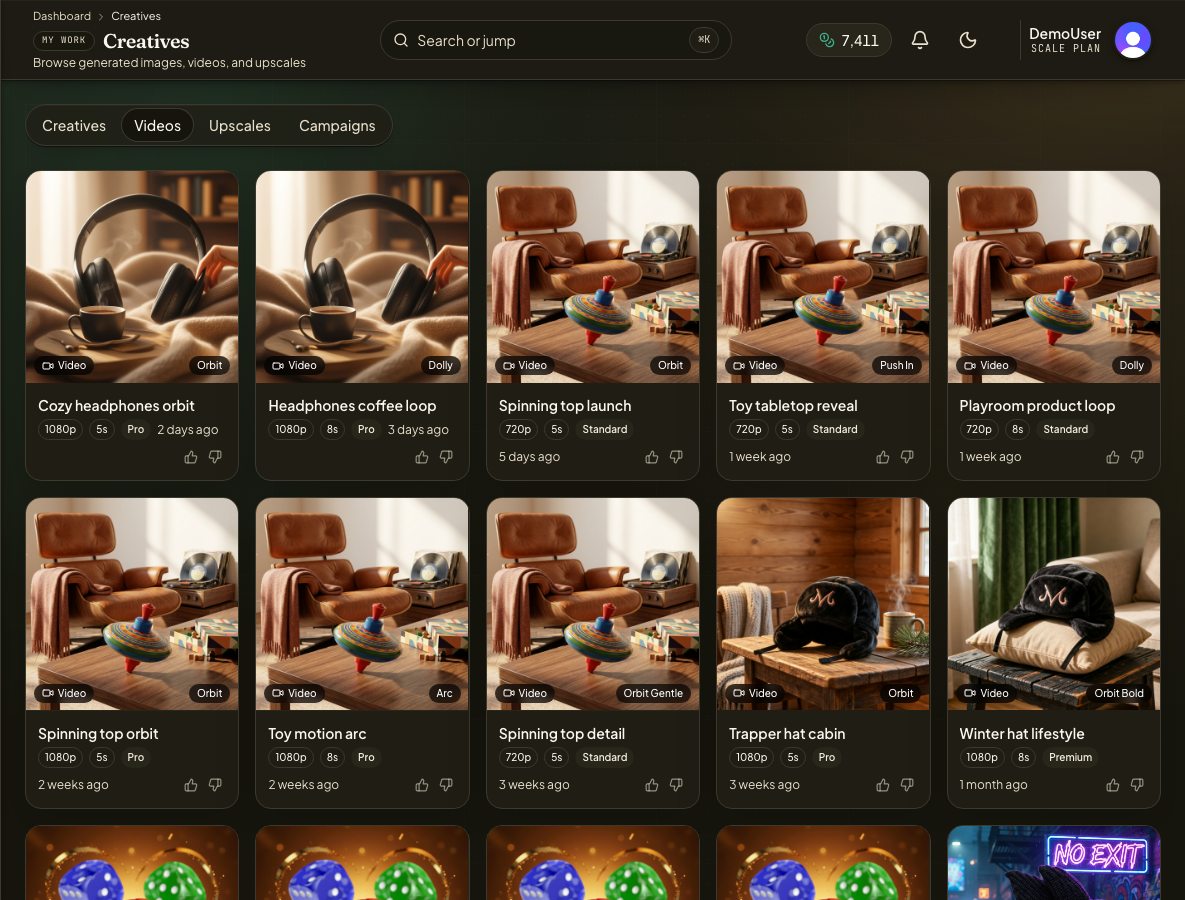
Open My Creatives and switch to Videos.
Scan status badges, source names, resolution, duration, quality tier, and motion labels.
Open a completed video to preview it before downloading.
Use thumbs up or thumbs down feedback to mark motion quality.
Retry a failed video only when the source image and settings are still worth using.
Select videos when you want to upscale or delete several items together.
Download or upscale
Download a video when the current resolution is enough for the placement. Use Upscale images and videos when the clip is strong but needs a larger final resolution.
Studio can show video assets, but shared Studio video export routes you to the Videos library. Use My Creatives for the most complete video download and upscale controls.
Why do I see failed videos in the library?
Failed cards keep the context visible so you can retry, delete, or contact support with the source and error details.