Prizer uses Stripe for secure subscription billing. Card details are entered and stored in Stripe, not inside Prizer.
Use this guide when
the card on file expired, you want to switch to a different card, or support asks you to refresh billing details before retrying a payment.
Before you start
Use the account that owns the workspace subscription. If you are on a team, the billing controls may only appear for the owner or a member with billing permission.
Open the billing portal
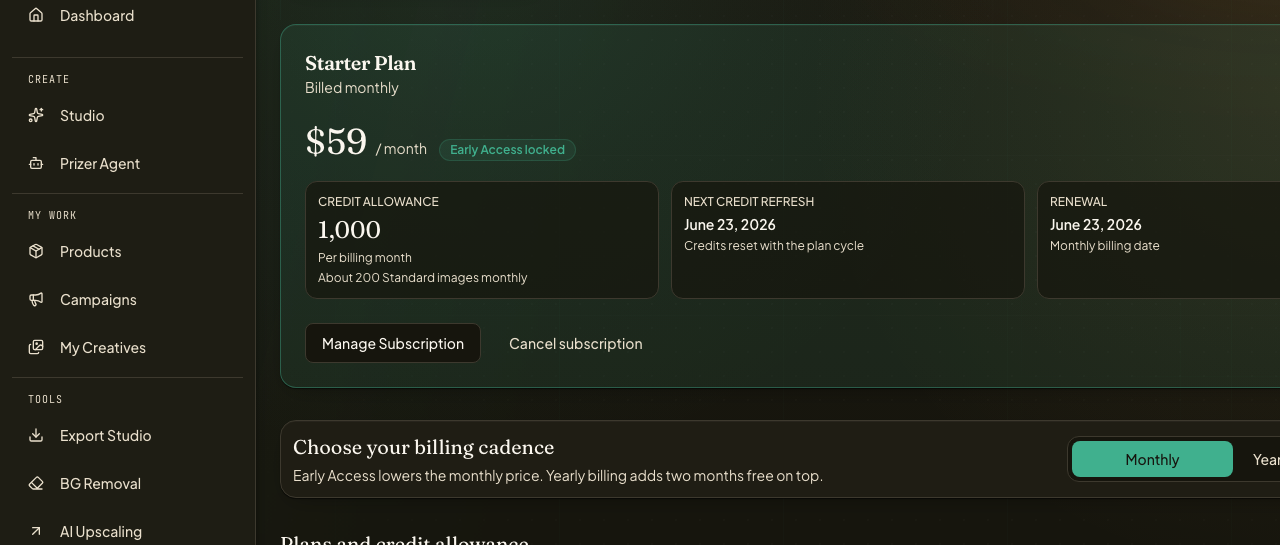
Open Credits from the dashboard.
Select Plans & Billing.
Find the current plan card.
Click Manage Subscription.
Wait for the secure Stripe billing portal to open.
Update the saved card
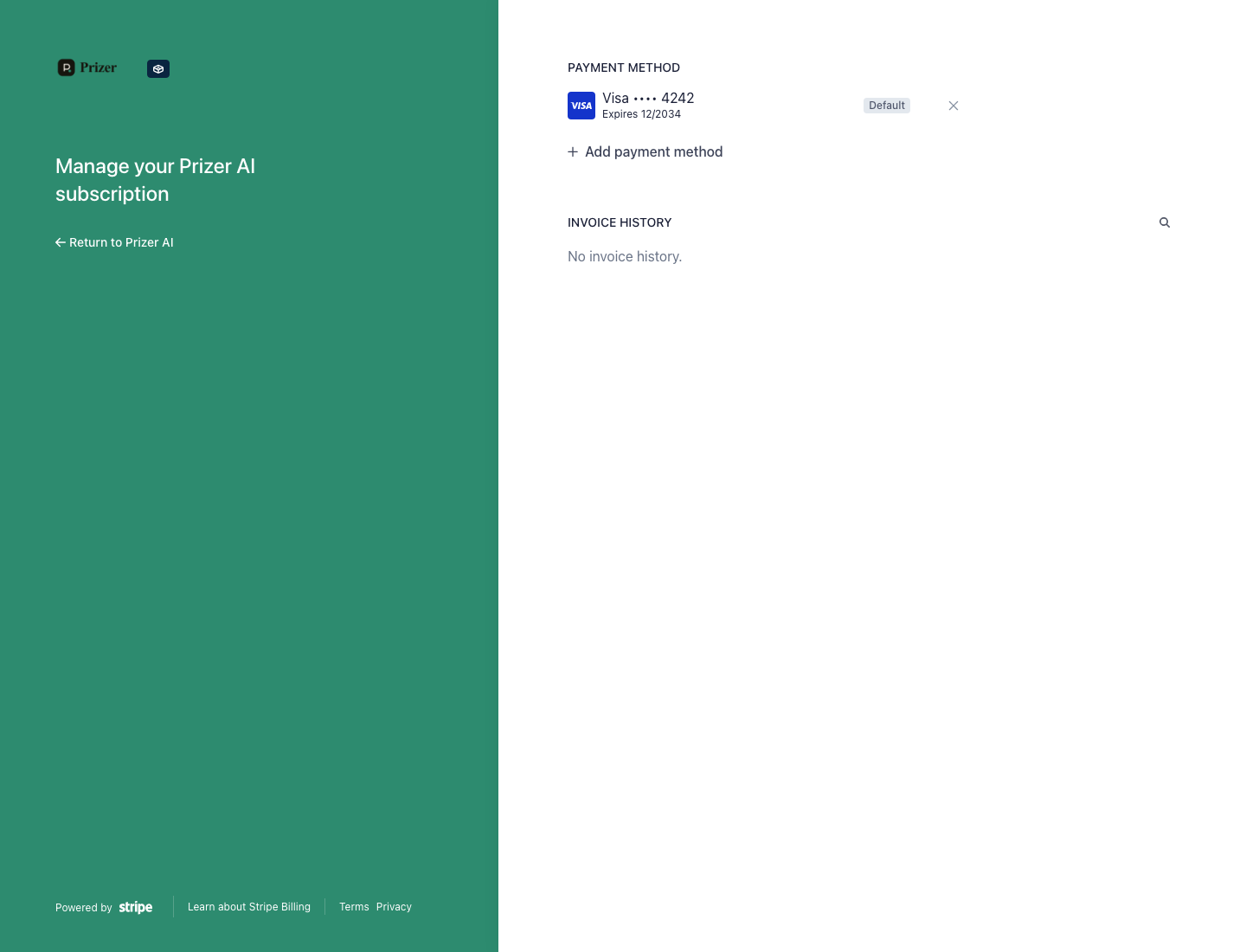
In the Stripe billing portal, find Payment Method.
Click Add payment method if you want to add a new card.
Enter the card number, expiration date, CVC, country, and ZIP code.
Save the payment method.
Confirm the new card appears as the default payment method.
Return to Prizer when you are done.
If payment still fails
A saved card update can fix expired card, replaced card, and billing detail problems. If payment still fails, contact support with the account email, workspace name, and approximate time of the failed payment attempt. Do not send card numbers or CVC codes to support.
The billing portal is the right place for subscription payment methods and invoice access. Plan changes, credit balance questions, and unusual billing states may still need support review.
Why does Prizer send me to Stripe?
Stripe securely handles card entry, saved payment methods, invoices, and subscription billing actions. Prizer does not store full card details.
What if I do not see Manage Subscription?
Make sure you are signed into the workspace that owns the subscription. If you are on a free workspace, trial workspace, or do not have billing permission, the option may not appear.