Prizer prepares assets and copy for Meta, but the final campaign setup still happens in Meta Ads Manager.
Use this guide when
you have downloaded a Meta placement export, a campaign handoff pack, or a Meta import Beta pack.
Before you start
Finish reviewing the creative in Campaigns, My Creatives, or Export Studio. Make sure copy is approved and no export button is blocked by incomplete creatives or copy limits.
Use a single Meta export
Open the creative from My Creatives or Studio.
Choose Export or open the quick export dialog.
In the Meta Ads tab, download the placement you need, such as Feed Square, Feed Portrait, Story/Reels, or Carousel Card.
In Ads Manager, create or edit an ad and upload the downloaded JPEG in the ad creative media area.
Paste headline, primary text, description, and CTA from Prizer if the export included a copy CSV.
Use the campaign handoff pack
Open a completed campaign from Campaigns.
Click Export Campaign, then download the Handoff pack.
Unzip the pack locally.
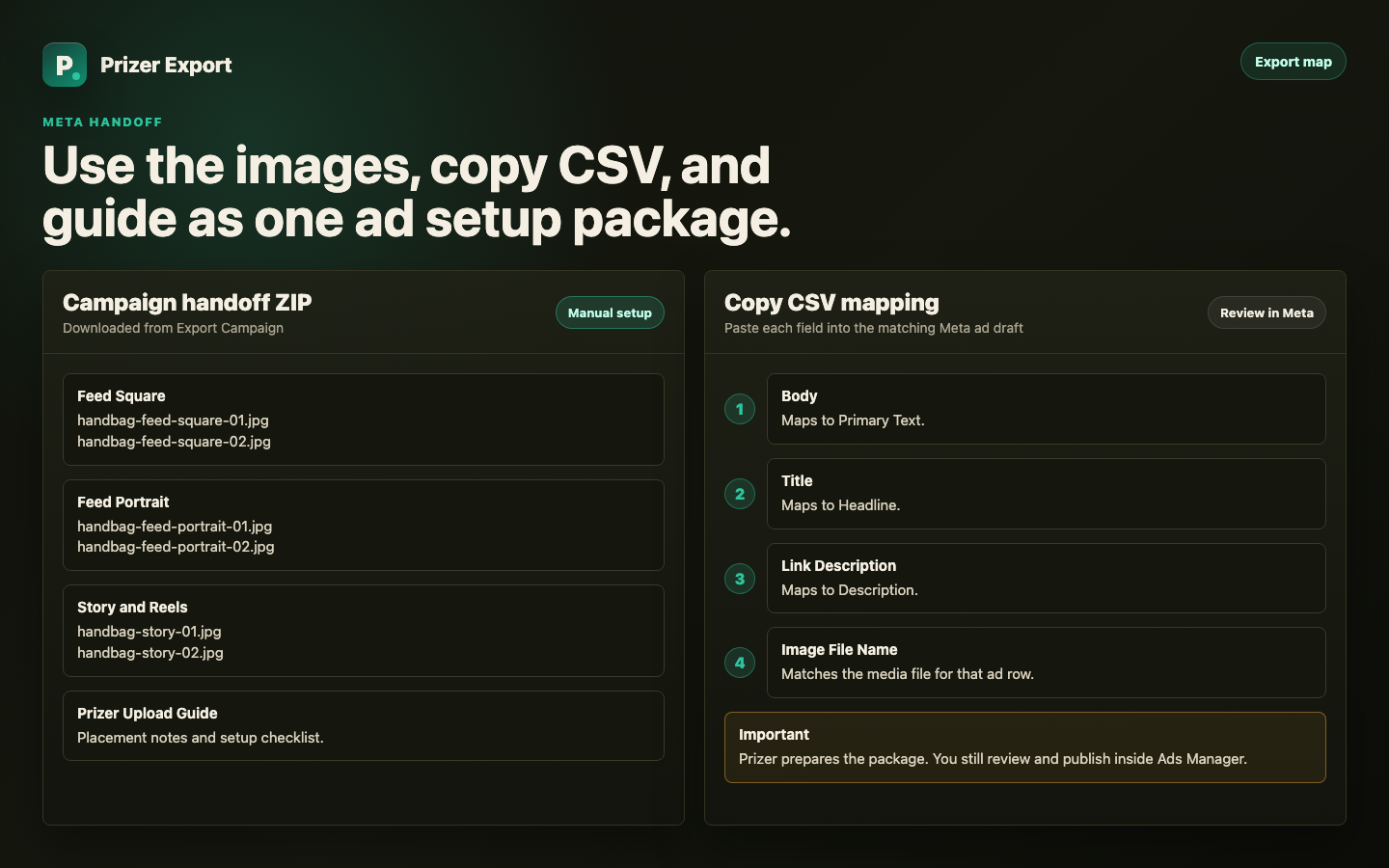
Upload images from the placement folders into the matching ad placements in Ads Manager. Feed 1:1 files are for square feed and carousel slots, Feed 4:5 files are for portrait feed slots, and Story 9:16 files are for Stories and Reels.
Open Prizer-Ad-Copy.csv and copy the Body, Title, Link Description, Call to Action, and Image File Name values into the matching ad draft.
Use Prizer-Upload-Guide.txt as the local checklist for the pack you downloaded.
Use campaign-ready CSV fields
The copy CSV maps Prizer fields to common Meta fields. Body maps to Primary Text. Title maps to Headline. Link Description maps to Description. Call to Action maps to Meta's CTA value. Image File Name tells you which media file belongs with that copy row.
If you are building several ads, keep the unzipped media folder and the CSV open side by side. Match the Image File Name column before pasting copy so the right image and message stay together.
Use Meta import Beta
Some workspaces can export a Meta import Beta pack from the campaign export dialog.
Use this when you want Prizer to create a real Ads Manager import template plus a matching media folder for one supported export shape.
Before downloading, fill optional fields such as Campaign Objective, Ad Set Daily Budget, Link Object ID, Destination URL, and Display Link Override if you already know them. Blank fields stay blank and may need to be completed in Ads Manager before publishing.
After importing, review the imported campaign draft, page identity, destination URL, targeting, budget, placement warnings, and previews inside Ads Manager. Treat the import as a draft, not a publish action.
When to choose each path
Use single placement export for one ad or a quick test.
Use the campaign handoff pack when you want a reliable manual upload package with all placement folders and copy references.
Use Meta import Beta when your workspace has it enabled and you want an Ads Manager template workbook for a narrow supported export shape.
Meta may change its import screens and validation rules. If Ads Manager rejects an import pack, use the handoff pack workflow and contact support with the campaign link and the exact Meta error.
Does Prizer publish ads to Meta automatically?
No. Prizer prepares media, copy, and import files. You review and publish inside Meta Ads Manager.