The support widget is available inside Prizer and on public help surfaces. It can suggest help articles and send your request to the support team with safe account context.
Use this guide when
you cannot solve an issue from the Help Center or when you need support to inspect a specific account, product, creative, batch, or campaign.
Before you start
Open the page related to the issue before contacting support. A request sent from the right page can include safer, more useful context than a generic message. For generation issues, check Troubleshooting failed generations first.
Send a useful support request
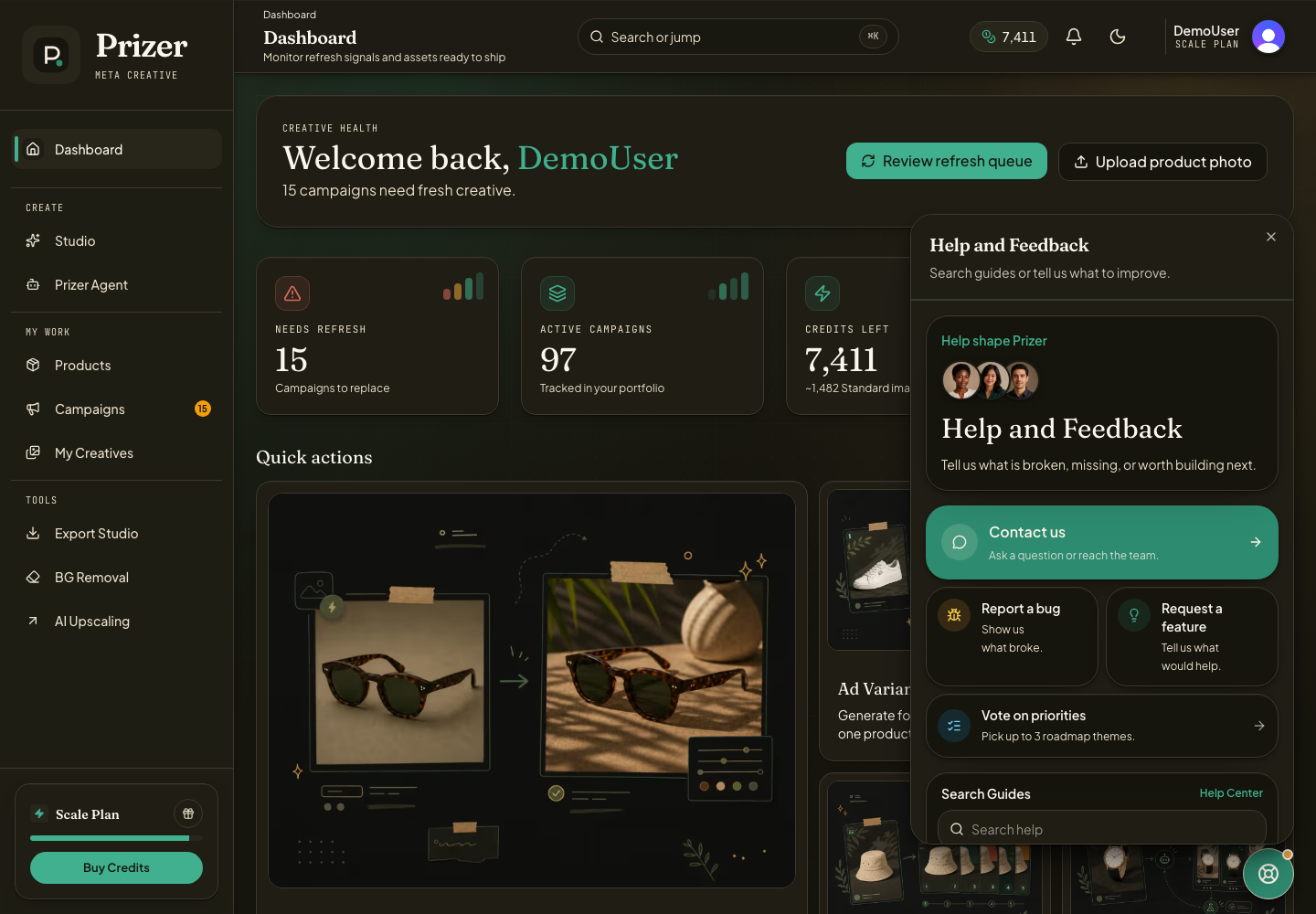
Open the support button in the lower corner of the app.
Search help articles first if you need a quick answer.
Choose the contact or feedback option that matches the issue.
Include the product, campaign, creative, batch, or page link when the issue is about a specific workflow. Links from Products, Campaigns, and My Creatives are especially useful.
Describe what you expected, what happened instead, and when it happened.
What support can see
Signed in dashboard requests can include safe context such as route, team, plan, credit balance, browser, and suggested article matches. This helps support investigate without asking you to repeat basic account details.
Do not paste API keys, passwords, payment card numbers, or private customer data into the support message.
Will support replies be sent automatically by AI?
No. AI drafts can help the support team, but replies must be reviewed and approved by an admin before sending.